
Embedding a Google Form puts it on your own page, so people fill it in without leaving your site for a docs.google.com address. Google gives you a piece of HTML called an iframe. Any site builder that accepts HTML can show it.
This guide covers how to embed a Google Form with the current Embed HTML option and how to make the iframe fit on a phone. It also covers sending the form inside an email. The last section fixes the form that shows a blank box instead of loading.
Quick answer
- Your own website or HTML page: publish the form and click the three-dot More menu. Choose Embed HTML and copy the code. Paste it where the form should appear.
- A site builder: paste the same code into a Custom HTML block in WordPress, Embed HTML in Wix, a Code block in Squarespace, or an Embed element in Webflow. Google Sites has its own Forms option under Insert, with no code.
- An email: tick Notify people when you share or publish the form. Google sends the form in the email, but many mail apps show only a link, so add the responder link too.
How do you embed a Google Form in a website?
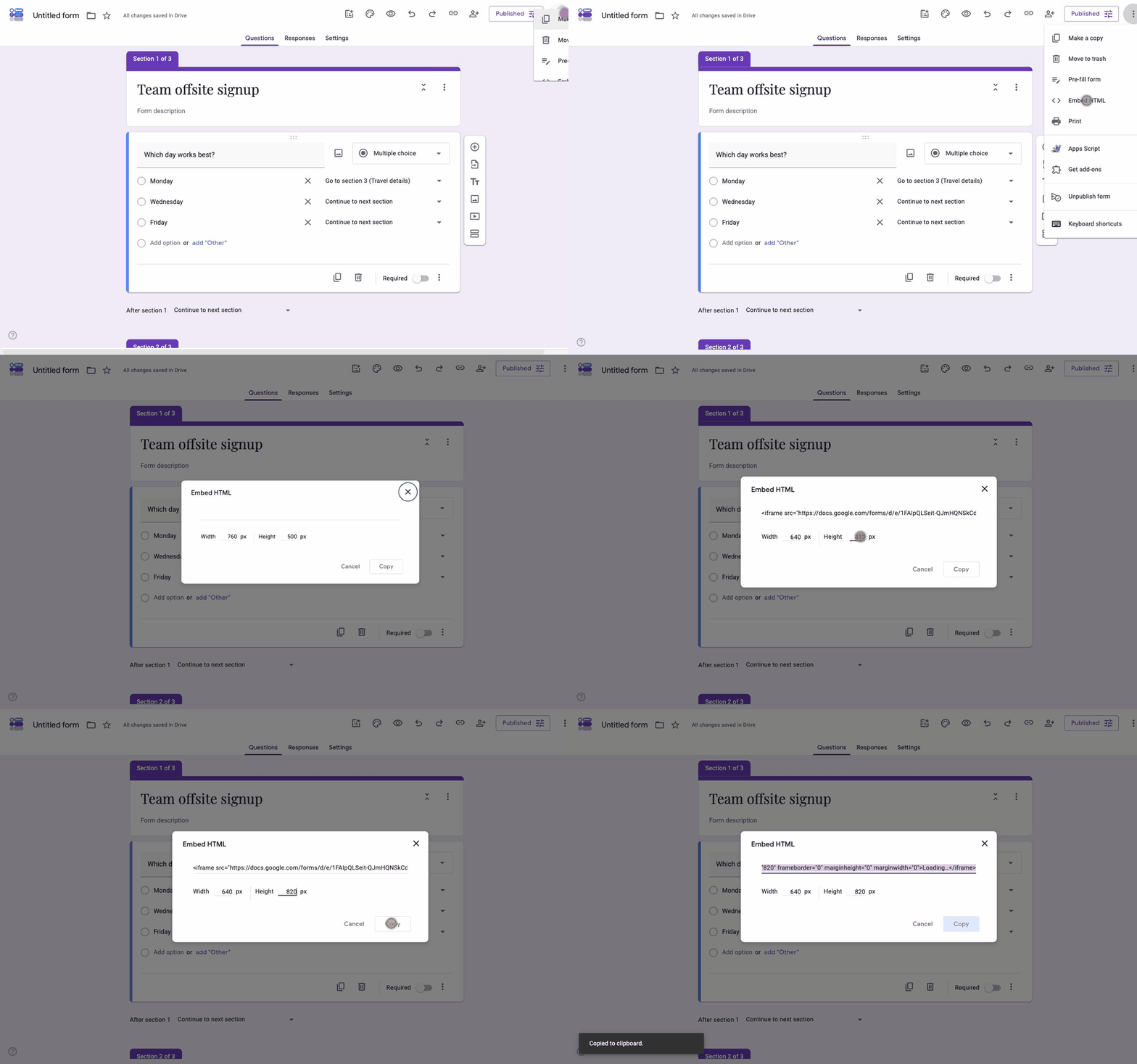
Google moved the embed option when it added the Publish button. It used to sit behind Send. It is now in the More menu. The form also has to be published before the embed loads for anyone but you.
-
Publish the form
Click Publish in the top right. Click Manage next to Responders and check that General access is Anyone with the link. Google's documentation says responders cannot open an unpublished form. In an embed, that shows up as a permission message where the questions should be.
-
Open Embed HTML
Click the three-dot More menu in the top right of the editor and choose Embed HTML. If your account still shows a Send button instead of Publish, the same option is the angle-bracket icon inside Send.
-
Set the width and height
The dialog shows the iframe code with width and height fields. Set the width to what your page column allows, and the height to the full length of the form. Google does not resize the iframe later, so a short height means the form scrolls inside its own box.
-
Click Copy
Click Copy. The code looks like this, with your own form ID in the address:
<iframe src="https://docs.google.com/forms/d/e/FORM_ID/viewform?embedded=true" width="640" height="1200" frameborder="0" marginheight="0" marginwidth="0">Loading…</iframe> -
Paste the code into your page
Paste the iframe into the HTML of your page where the form should appear, or into the HTML block of your site builder. The next two sections cover both.
How to embed a Google Form in HTML
On a hand-coded page, paste the iframe where the form should appear. That works on desktop as it is. The problem is phones. The iframe has a fixed pixel width, so a 640-pixel box on a 390-pixel screen gets cut off.
Wrap it in a container and let the width follow the container instead:
<div style="max-width:720px;margin:0 auto;">
  <iframe src="https://docs.google.com/forms/d/e/FORM_ID/viewform?embedded=true"
    style="width:100%;min-height:1400px;border:0;">Loading…</iframe>
</div>
The width now shrinks to the screen. The height still cannot follow the form. The form loads from Google's domain, so your page cannot measure it. Set the min-height a little taller than the form on a phone, where the questions wrap onto more lines. Adding or removing a question later changes the length, so check the page again after you edit the form.
How do you embed a Google Form in a site builder?
Every builder has a block that accepts raw HTML. Paste the iframe from the steps above into that block. The wrapper trick works in all of them, since the block passes the HTML through as it is.
WordPress
In the block editor, add a Custom HTML block and paste the code. No plugin is needed. Page builders such as Elementor and Divi have an HTML widget that does the same job.
Wix
Click Add Elements, choose Embed Code, then Embed HTML. Paste the code into the element and drag the element to the size you want. Wix sizes the element separately from the iframe inside it, so check the mobile view before you publish.
Squarespace
Add a Code block to the section and set its type to HTML. Paste the code. The block takes the width of the column it sits in.
Webflow
Drag an Embed element from the Components panel onto the page and paste the code. It renders when you publish.
Google Sites
Google Sites is the one place you do not need the code. Open the Insert panel and click Forms. Pick the form from your Drive. Google Sites places it and sizes it, and you can drag the corners to adjust.
How do you embed a Google Form in an email?
Google can put the form itself inside an email, so the person answers without opening a page. It happens when you share or publish the form with Notify people ticked.
-
Publish the form
Google only sends the email once the form is published. If you publish and notify responders at the same time, the email they get includes the form.
-
Open Share and add the addresses
Click Share in the top right and enter the people or groups who should get the form.
-
Leave Notify people checked and click Send
The box is on by default. Google sends each person an email with the form inside it.
Google lists the forms it cannot embed in an email: forms with a file upload question, a rating question, an image in a question or an option, or a secured quiz. Those forms arrive as a link.
Whether the form shows inside the message depends on the mail app that opens it. Many apps show a button or a link instead. Put the responder link in the message text as well, so everyone can open the form whatever their mail app does.
Formester's embed form in email option takes a different route. It puts the first question inside the email as clickable answers. The click opens the rest of the form with that answer already saved. The answer buttons render in Gmail and Outlook as well as Apple Mail and Yahoo Mail.
Why is the embedded Google Form not loading or not fitting?
- A blank box or a permission message. The form is not published, or responder access is Restricted. Click Publish, then Manage. Set General access to Anyone with the link. Our guide on giving access to a Google Form walks through every cause.
- An accounts.google.com refused to connect message. The form asks people to sign in, and Google's sign-in page cannot load inside an iframe. Limit to 1 response and Verified email collection both force a sign-in. So do a file upload question and Restricted responder access. Turn the setting off, or link to the form instead of embedding it.
- An empty box with a Content Security Policy error in the browser console. Your site blocks iframes from other domains. Add
frame-src https://docs.google.com;to the policy, or ask whoever manages the site to. - The form scrolls inside its own box. The height is too short. Open the form on its own and note how long it is. Set the min-height above that.
- The form is cut off on phones. The iframe has a fixed pixel width. Use the wrapper from the HTML section so the width follows the screen.
- The form ignores your site's colors and dark mode. Google Forms uses its own theme inside the iframe. The theme options change the colors and the font, not the layout or the buttons, and the form does not follow your site's dark mode. If the form has to match your site, use a form builder with its own embed. Our list of Google Forms alternatives compares the options.
What a Google Forms embed cannot do
An iframe is fine for a contact form on a page that a few people visit a day. The limits show up when the form has to match the page's design or fit the page without a fixed height.
| Google Forms embed | Formester embed | |
|---|---|---|
| How it appears | One option, an iframe in the page | Inline, popup, sidebar, side tab, popover, or fullscreen |
| Height | Fixed, set by you | Auto Height, follows the form |
| Look | Google's theme inside the box | Your own fonts and colors |
| File uploads | Respondent must sign in to Google | No account needed |
| Guides for builders | Paste the HTML anywhere | WordPress, Wix, Webflow, Shopify, Canva, plus any HTML page |
Formester's embed forms feature uses a script snippet instead of an iframe, so the form takes the height it needs and follows the page width on any screen.
An embed that fits the page on its own
Six ways to show the form, with Auto Height so nothing scrolls inside a box. No Google account for anyone who fills it in. Free plan with unlimited forms and responses.
Try Formester freeFree forever · No credit card · 56,000+ teams
Related reading
- Give access to a Google Form, for the publish and responder settings behind an embed that will not load.
- Embed a form in a Wix website, using the embed code or the Formester Wix app.
- Add a form to Webflow, using the Embed element.
- Add a WordPress contact form without a plugin, if you want a form built in Formester on your WordPress site.
- Customize Google Forms, and what the theme panel can and cannot change.