Google Forms does not have a right-to-left toggle. Google's own help thread confirms there is no official RTL setting. The only workaround is to change the Forms account language to Hebrew or Arabic, which flips all your forms RTL, but only in your own view.
If you want every respondent to see the form in RTL, native to their script, you need a form builder that ships RTL as a setting.
This guide covers the Google Forms workaround, the limits you should know about before shipping, a language-by-language quick reference for Arabic, Hebrew, Urdu, Persian, Pashto, and Sindhi, and three builders with native RTL support (Formester, Jotform, Fillout).
Quick answer
Google Forms does not have a right-to-left toggle. The only workaround is to change your Google account's Forms language to Hebrew or Arabic, which flips the form RTL in your editor view, but respondents still see it left-to-right.
For respondent-facing RTL, use a native builder: Formester (toggle Multilanguage, pick Arabic, Hebrew, Urdu, Persian, Pashto, or Sindhi, AI translates and aligns), Fillout (per-form RTL flag), or Jotform (custom CSS).
For developers, dir="rtl" with the right lang attribute is the W3C-documented approach.
Native RTL form builders compared
Three builders ship right-to-left support that actually reaches the respondent, not just the form editor. Pick on setup speed and translation depth.
Formester
Best for: One form, many RTL languages, AI does the translation
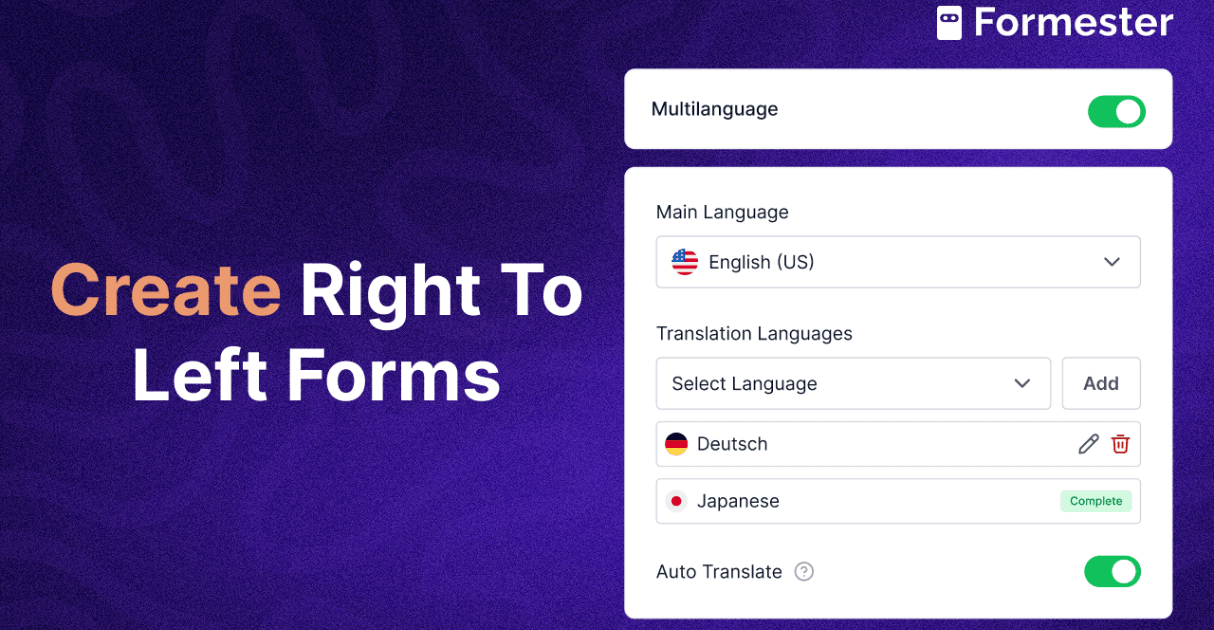
- Toggle Multilanguage in Advanced settings, add an RTL language, hit Translate with AI
- RTL alignment auto-applies per language
- AI translation across 180+ languages
- Built-in respondent language switcher
- Offline mode and translations sit on paid plans
- Branding removal is Personal+
Fillout
Best for: A pure layout flip on a form you already wrote
- Per-form Right-to-left toggle in settings
- Quickest setup of the three
- Layout flips for every field type
- RTL is a layout flag, not a translation engine
- You write the copy in the target language yourself
Jotform
Best for: Teams deep in Jotform who don't want to migrate
- Paste a custom CSS block in the Form Designer
- Works on any existing form
- Covers labels, checkboxes, radios, matrix grids
- You maintain the CSS by hand
- Jotform updates can break alignment
- Not toggle-based
RTL languages: what you need to know before shipping
Six RTL scripts cover almost every audience you will hit. Each one has its own font and numeral gotcha that the form builder needs to handle correctly.
| Language | Native script | Speakers (millions) | Common form use cases | Key gotcha |
|---|---|---|---|---|
| Arabic | العربية | 380+ | Customer service, government, education, e-commerce checkout in MENA | Numerals are usually Western (0-9), not Eastern Arabic. Set them per field. |
| Hebrew | עברית | 9 | Israeli public sector, fintech onboarding, NGO surveys | Mixed Hebrew + English content needs bdi or bdo tags or labels break. |
| Urdu | اردو | 230+ | Pakistani government forms, Indian academic surveys, NGO outreach | Nastaliq script needs a font that supports it (Noto Nastaliq Urdu is safe). |
| Persian (Farsi, Dari) | فارسی | 110+ | Iranian banking, Afghan diaspora services, academic intake | Numerals can be Persian (۰-۹) or Western. Confirm with the audience. |
| Pashto | پښتو | 60+ | Afghan government, refugee intake, education | Limited font support outside Noto Sans Pashto. Test on mobile. |
| Sindhi | سنڌي | 25+ | Pakistani provincial forms, Indian academic | Arabic-Sindhi script differs from standard Arabic. Use a Sindhi font. |
The fix is the same at a layout level: dir="rtl" on the form root and a font that supports the script. The complexity sits downstream in numerals, mixed-direction text, and font availability on mobile.
How to flip Google Forms to RTL (the language workaround)
Five steps. Flips the editor and your own preview to RTL. Does not change what respondents see.
-
Open Google Forms
Sign in to forms.google.com with the Google account you build forms with.
-
Open your Google Account settings
Click your profile icon in the top-right corner of any Google product (Gmail, Drive, Forms).
-
Go to Personal info, then Language
Click "Manage your Google Account", then "Personal info", then "Language".
-
Add an RTL language and set it as primary
Pick Arabic, Hebrew, Urdu, or Persian, then set it as your primary language.
-
Refresh Google Forms
Reload the tab. The editor and every form you open or create is now right-to-left aligned.
Limit: this only flips your own view. Respondents on default-English Google accounts still see a left-to-right form. There is no per-form RTL setting and no public link parameter that forces direction. Google's help thread confirms this.
How to make a native RTL form in Formester (4 steps)
Under two minutes if you start from a finished English form. Every respondent sees the form in their own script, with proper alignment, no CSS.
-
Build your base form in your primary language
Log in to Formester. Start from scratch with the AI form builder (paste a prompt or a list of questions) or open an existing form. Build it in whichever language is easiest for you; AI translation handles the rest.
-
Toggle Multilanguage on
Open the form's Advanced settings panel. Find the Multilanguage toggle and switch it on. This unlocks the language picker and adds a dropdown for respondents.
-
Add an RTL language and let AI translate
Click Add Language. Pick Arabic, Hebrew, Urdu, Persian, Pashto, or any of the 180+ supported languages. Click Translate with AI. The pass runs across every question, option, placeholder, and helper text. Alignment flips to RTL where it needs to. Review, edit, save.
-
Preview, test on mobile, share
Hit Preview. Switch to Arabic or Hebrew from the language picker; alignment flips, the submit button moves to the left of the row. Test on mobile (RTL is where most builders fail). Share by public link, QR code, or one of the six embed modes on your site, WordPress, Webflow, Shopify, Wix, or Canva.
Building your own form? The dir="rtl" snippet
Plain HTML. The W3C-documented attribute is dir="rtl" on the form element (or a parent like body).
<form dir="rtl" lang="ar"> <label for="name">الاسم</label> <input type="text" id="name" name="name" /><label for="email">البريد الإلكتروني</label> <input type="email" id="email" name="email" />
<button type="submit">إرسال</button> </form>
The lang attribute matters as much as dir. Screen readers, search engines, and font-fallback all read it. Use lang="ar" for Arabic, lang="he" for Hebrew, lang="ur" for Urdu, lang="fa" for Persian. For mixed-direction content (a Latin-script brand name inside Arabic body), wrap it in <bdi> so the bidirectional algorithm does not flip it incorrectly.
Build RTL forms in Arabic, Hebrew, Urdu and 180 more languages
Toggle multilanguage, AI translates and aligns RTL automatically. Built-in language switcher for respondents.
Start free on FormesterFree forever plan•No credit card•Setup in 2 minutes
Keep reading
Sister guides on multilingual forms, Google Forms alternatives, and embedding forms across the stack.
AI-powered multilingual forms (180+ languages)
The full breakdown of how Formester's translation pass works, every supported language, and the language switcher respondents see.
Read the guide Switching guideGoogle Forms alternatives
Side-by-side comparison of the builders worth switching to when Google Forms falls short on RTL, branding, conditional logic, or payments.
Compare builders Google Forms clusterHow to add conditional logic in Google Forms
Walk-through for branching a Google Form by answer, plus where the section-based logic hits its limits.
Read the tutorial Embed guideHow to embed forms in Wix, WordPress, and Webflow
Six embed modes (inline, popup, sidebar, side tab, popover, fullscreen), what each one does, and which one fits your page.
Read the guide Feature pageConditional logic in Formester
Show or hide sections based on the language a respondent picks, then route follow-ups to the right team.
See how it works Feature pageAutoresponder emails
Send the confirmation, receipt, or follow-up in the same language the respondent filled the form in.
See how it works