Need to know how to add fillable fields in a PDF you already have? You can add text boxes, checkboxes, dropdowns, dates and signature fields in your browser. You then test the fields and download a real fillable PDF.
Formester's free fillable PDF maker does this without a signup or watermark. Your PDF stays in your browser and is not uploaded to Formester.
Quick answer
- Open your digital PDF in the free creator.
- Drag the fields onto the page and set their names and options.
- Test the form, then download the fillable PDF.
- For a scanned PDF, place fields manually or first use optical character recognition (OCR) to read the text.
First, choose the output you need
People use fillable PDFs for a few different jobs. The right route depends on what you want to send and what you want back.
Keep the PDF as a file
Choose this when someone must download, complete and return the same document. Government forms, contracts and documents with a fixed layout often work this way.
This guide covers that job. You will add interactive fields to the PDF itself and download the finished file.
Collect answers online and generate the PDF later
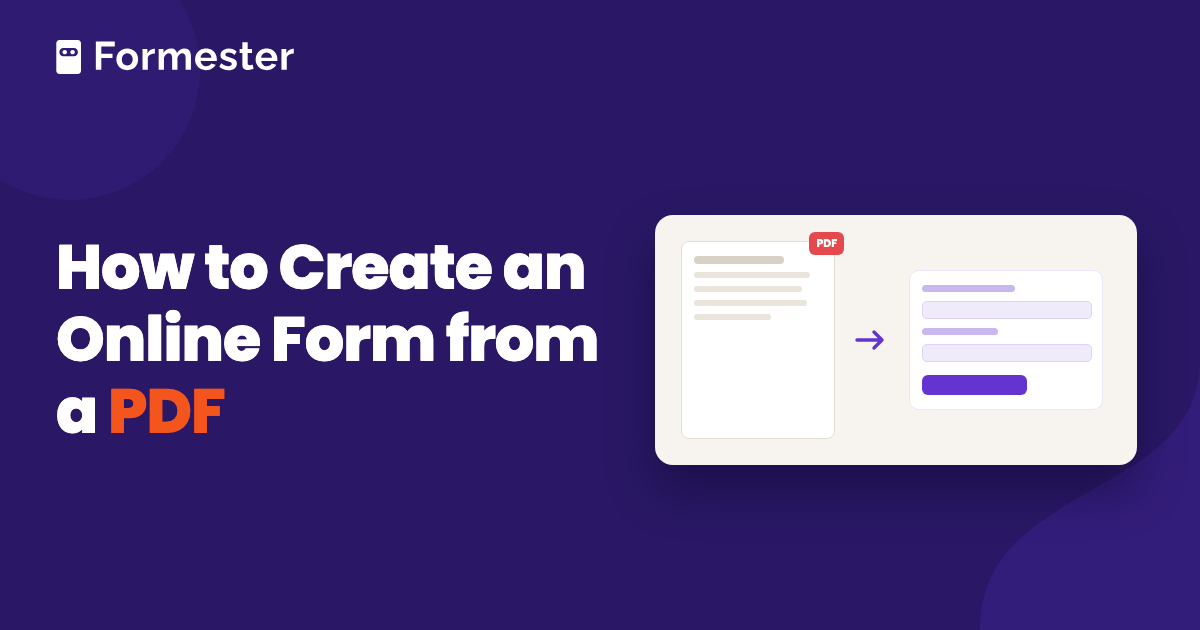
Convert the PDF into an online form when you need to collect the same information from many people. They complete a web form, and you keep each response in one dashboard. On the Business plan, Formester can also fill your original PDF after each submission.
Read how to create an online form from a PDF if you need this workflow.
Fill a PDF someone sent you
You do not need to add fields when the PDF already has them. Follow the guide to fill out and save a PDF form instead.
How to add fillable fields to a PDF for free
You need a digital PDF and a browser. The creator accepts files up to 10 MB and 50 pages. It has no hourly cap, and it keeps the file on your device.
-
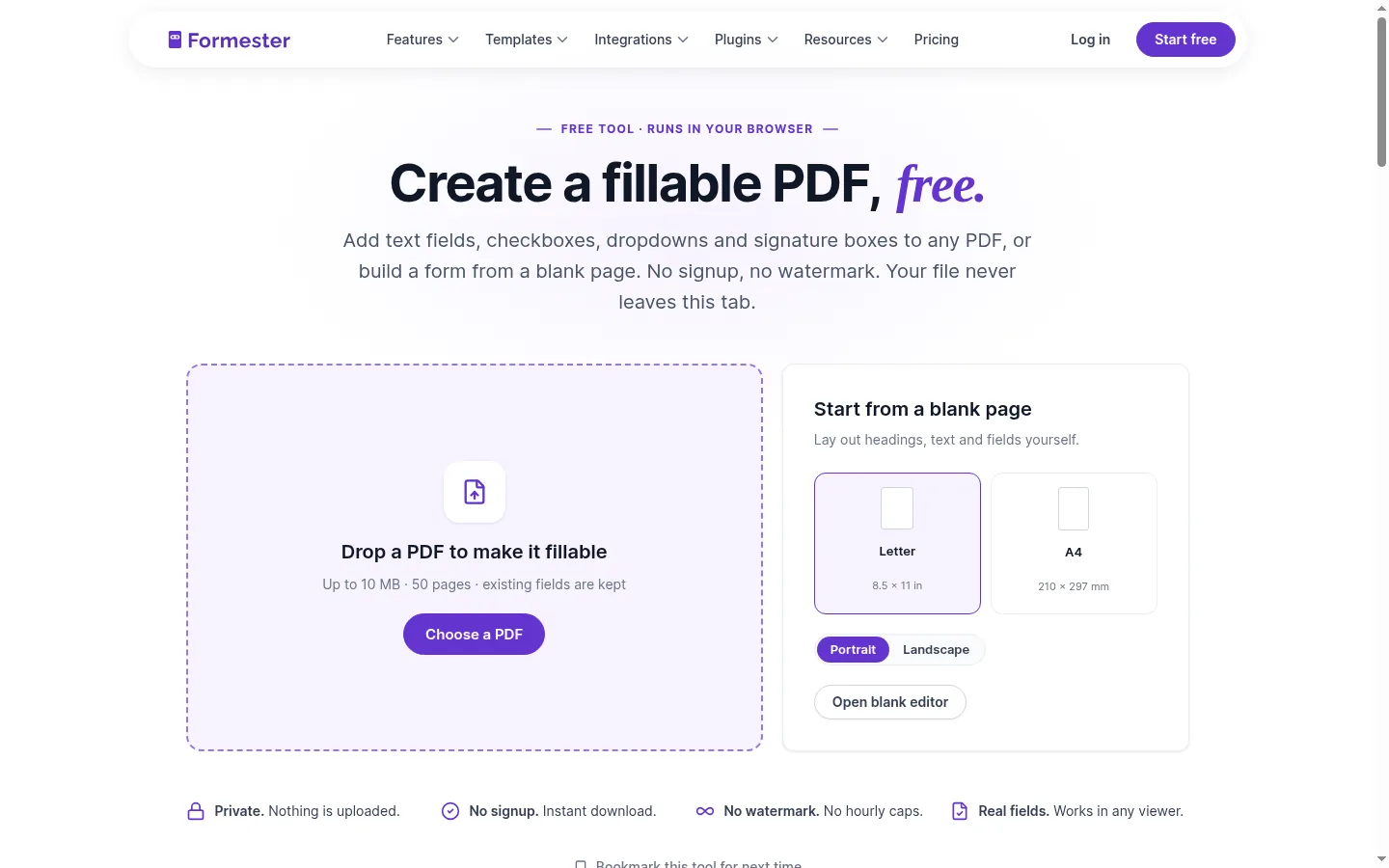
Open your PDF
Starting with the existing file keeps its layout intact. Open the browser-based PDF form editor and choose your PDF. The tool renders each page as a canvas. If the file already contains form fields, you can move, rename or delete them.
-
Add and configure the fields
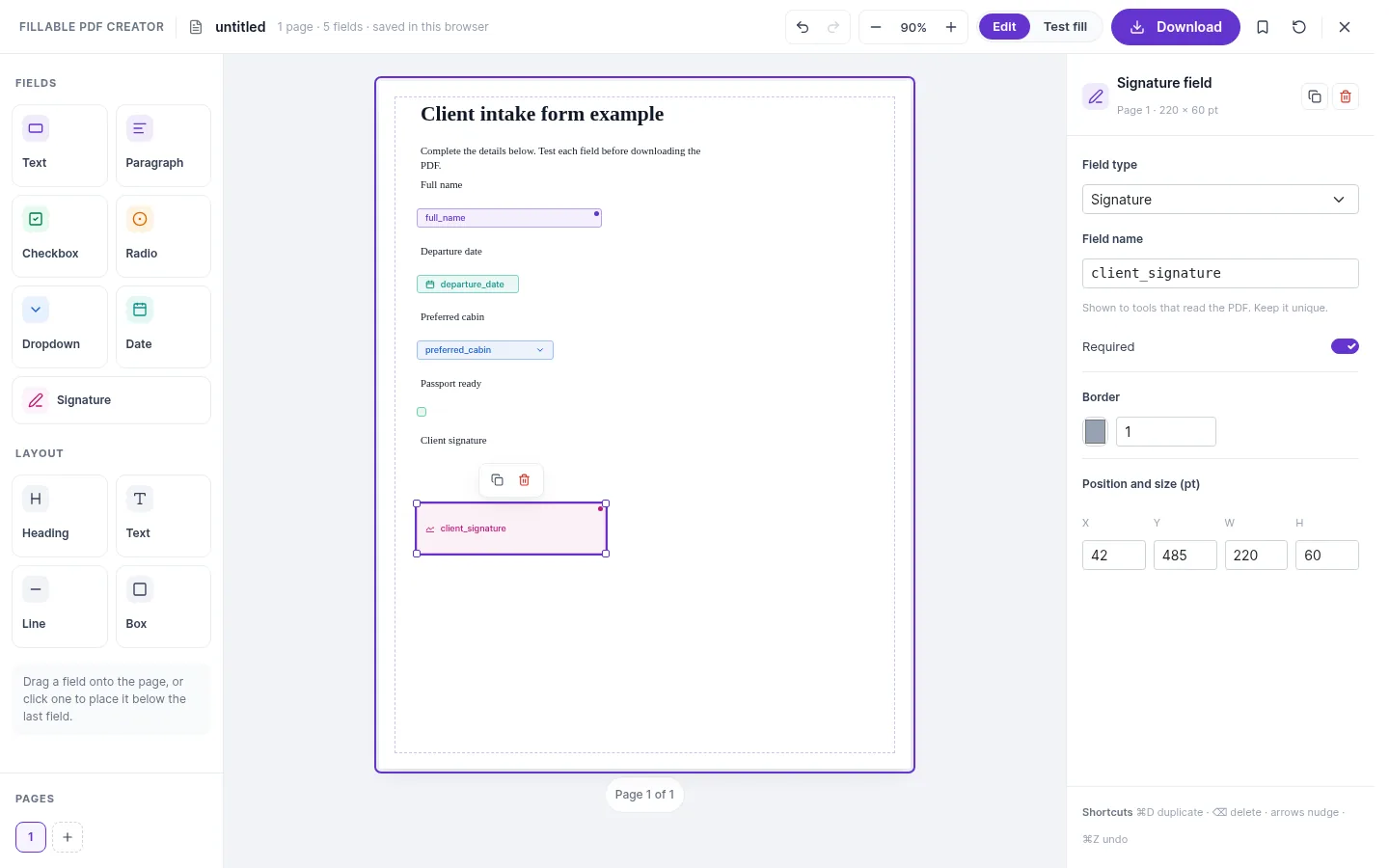
Clear names and settings help other PDF tools understand each field. Pick a field from the toolbar, then drag it onto the part of the page where the answer should go. Give the field a clear name. You can also mark it as required, set a default value or change its alignment.
Add every field before you test the form. This makes it easier to check the order in which someone moves through the page.
-
Test and download the PDF
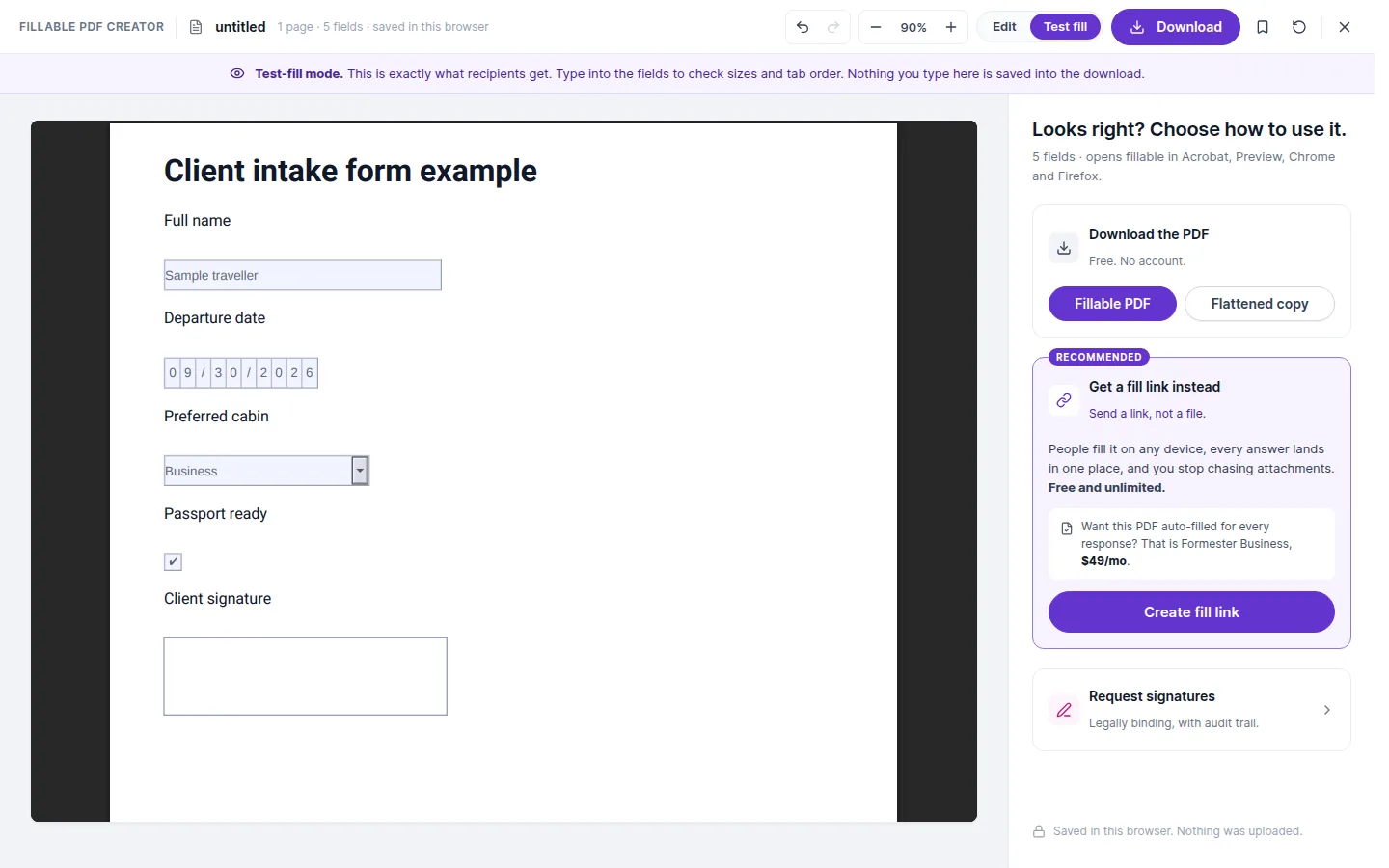
Testing catches cramped text and keyboard-order problems before you send the file. Open Test fill and complete the form once. Check that text fits inside each box, radio buttons work as a group and pressing Tab moves through the fields in a sensible order.
Download the interactive PDF when everything works. You can also download a flattened copy when you need a version that people cannot edit.
Pick the right field type
A text box works for a name, but it does not work well for every answer. Use the field that matches what the person needs to enter.
| Field | Use it for | Example |
|---|---|---|
| Text | A short answer on one line | Name, email or invoice number |
| Paragraph | A longer answer that needs to wrap | Notes or an explanation |
| Checkbox | A yes or no answer, or several choices | Accept the terms or select interests |
| Radio group | One choice from a group | Choose one delivery option |
| Dropdown | One choice from a longer list | Country, state or department |
| Date | A date entered with a format hint | Date of birth or application date |
| Signature | A place for someone to sign | Consent or approval |
Use clear field names before you download the file. A name such as client_name is easier to understand later than text_1. Field names also matter when another tool reads or fills the PDF.
Use Test fill and press Tab to check how a keyboard moves through the fields before you download the PDF.
Other ways to add fields to a PDF
The free creator works well for a digital PDF when you want to place the fields yourself. Another tool may fit better when the file is scanned, locked or already part of a paid document workflow.
Adobe Acrobat
Adobe Acrobat Pro can detect likely fields in a digital file or scanned document. Open Tools, choose Prepare Form, select the file and review the fields Acrobat adds.
Acrobat is the better route when you need OCR for a scan or need to work with a restricted PDF. It requires a paid plan. Check every detected field before sending the file because OCR and field detection can misread a busy page.
Sejda
Sejda lets you upload a PDF, add fields and download the result. Its published free limits are 200 pages or 50 MB and three tasks per hour. The file is uploaded to Sejda and deleted after two hours, so check your privacy requirements before using it for client or employee documents.
iLovePDF and PDF24
iLovePDF and PDF24 also provide browser-based PDF form tools. Their limits and field support differ. Use the full PDF form creator comparison if you want to compare pricing, privacy and output formats.
Microsoft Word
Word makes sense when you are creating the document from scratch. Add the controls in Word, protect the document and export it as a PDF. It is not the quickest route for a PDF that already exists. Follow the separate guide to make a fillable form in Word for those steps.
Fix common PDF field problems
The boxes are visible, but nobody can type in them
The boxes may be part of the page design rather than real form fields. This happens with PDFs exported from design tools and with scanned paperwork. Add an interactive field over each blank area, then test the file in a PDF viewer.
The PDF is password protected
A PDF can block changes even when you can open and read it. Ask the document owner for an editable copy or the owner password. Do not remove restrictions from a file you do not control.
The fields look different after download
PDF viewers do not render every field in exactly the same way. Download the finished file and test it in the viewer your recipient will use. Check signatures in Adobe Acrobat, and check text size and field borders in at least one browser viewer.
The PDF is a scan
A scan is an image of a page. Formester can place fields over it manually, but it cannot read the printed labels or detect blank areas. Use an OCR tool first when you want software to recognise the page content automatically.
When a web form works better
A fillable PDF keeps the document layout. It does not give you a response dashboard or remind people to finish the form. Completed files usually come back through email, and someone still needs to organise them.
Use an online form when the same process repeats. A client intake form is a good example. You send one link, see which responses are complete and store the answers together. Formester can then create a filled copy of the original PDF after each submission when you still need the document.
FREE PDF TOOL
Make your PDF fillable now
Open your PDF, add the fields and download the finished file. Everything runs in your browser, so your document stays on your device.
Make my PDF fillableNo signup · No watermark · No hourly cap