Google Forms draws a pie chart for you. Open the Responses tab and every multiple choice and dropdown question already has one, as soon as one person has answered. You cannot change that chart inside Google Forms. To make a Google Forms pie chart with your own colors and labels, or to save it as a file, you build it in Google Sheets from the linked responses.
Quick answer
- You want to see the chart Google already made: click Responses, then Summary. Multiple choice and dropdown questions get a pie chart. Checkboxes and scales get a bar chart.
- You want to copy or download it: click the copy icon on the chart card and paste it into Docs or Slides. For a file you can attach, rebuild it in Google Sheets. Sheets downloads a chart as an image or a PDF.
- You want different colors or a different chart type: link the responses to Google Sheets and count the answers with COUNTIF. Insert a pie chart from that table.
Where is the Google Forms pie chart?
The chart lives in the Responses tab, not in the form itself. Google's documentation notes that the Summary view only appears once the form has at least one response, so a brand new form shows nothing until you submit a test answer.
-
Open the Responses tab
Open the form in the editor and click Responses at the top, next to Questions and Settings.
-
Stay on Summary
Summary is the first of the three views and the one with the charts. Question groups answers by question, and Individual shows one response at a time.
-
Scroll to the question
Each question has its own card. The chart type depends on the question type, and you cannot change it here.
Which questions get a pie chart
Google picks the chart from the question type. A pie chart only works when each person gives one answer, so only single-answer questions get one.
- Multiple choice and dropdown questions: pie chart.
- Checkbox questions: horizontal bar chart, because one person can tick several options.
- Linear scale and rating questions: bar chart, one bar per point on the scale.
- Multiple choice grid and checkbox grid questions: stacked bar chart, one bar per row.
- Short answer and paragraph questions: a list of the answers, no chart.
If a question shows a bar chart and you need a pie chart, change its type to multiple choice in the Questions tab. If you can, change the type before you share the form.
How do you copy or download a Google Forms pie chart?
The Summary view has no download button. It does have a copy control. Click the copy icon at the top right of the chart card and paste the chart into a Google Doc or a slide. Google's help page says a chart pasted into Docs or Slides can be updated later from inside that file, as long as you can still edit the form.
A screenshot works too, and it is the only option on a phone. For a file you can attach or print, such as a PNG or a PDF, rebuild the chart in Google Sheets using the steps below.
How do you show respondents the pie chart?
You can let the people who fill in the form see the same charts, which is useful for a class poll or a team vote. Open Settings and expand Presentation. Turn on View results summary. After someone submits, the confirmation page links to a summary with every chart.
The summary shows everything, not only the charts. Google warns that full text answers are visible to anyone who can respond. Leave the setting off on a form that asks for names or comments. One respondent should not be able to read what another wrote.
How do you make a custom pie chart in Google Sheets from form responses?
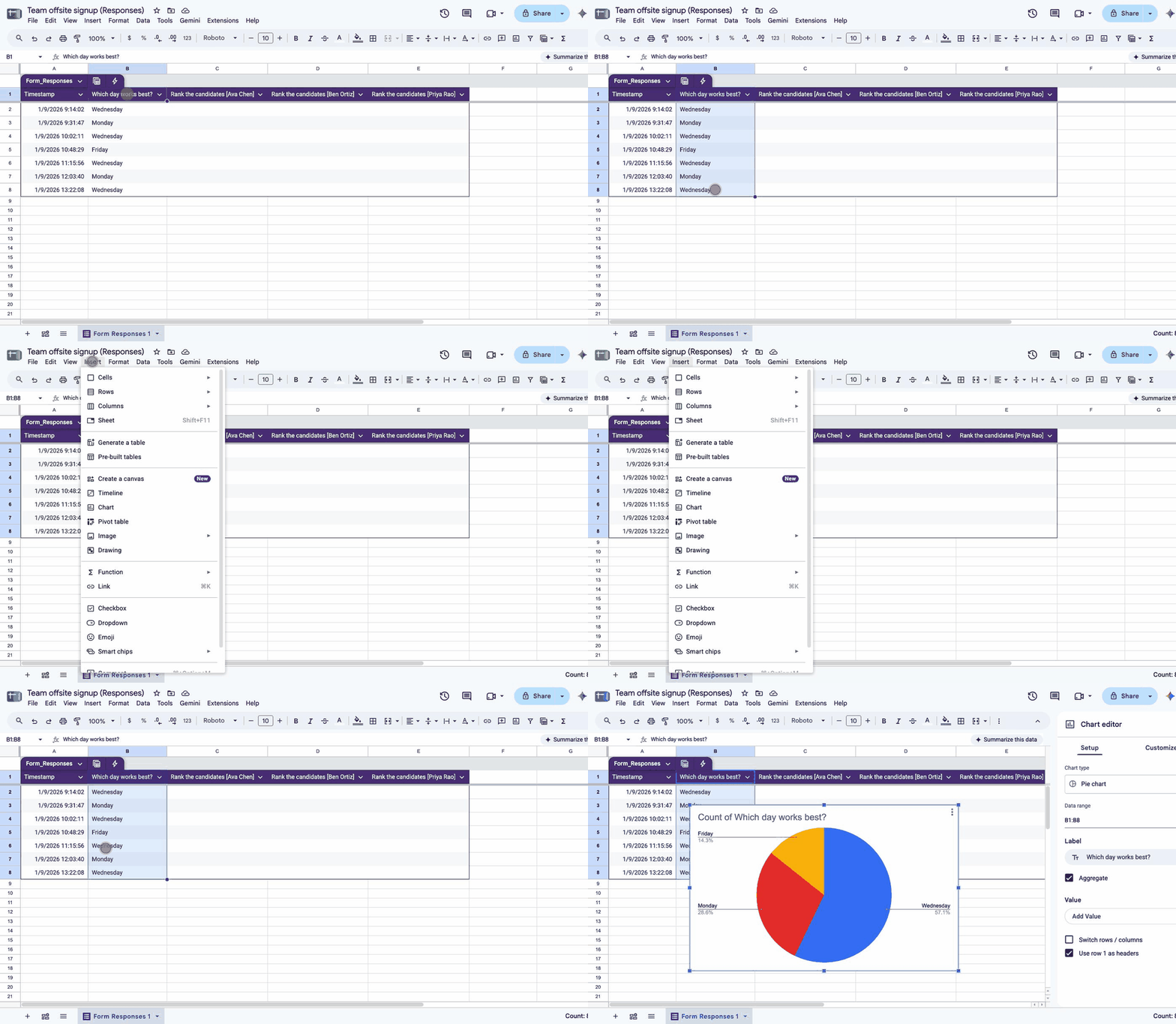
Google Sheets is where you change colors and labels, and where you download the chart as a file. Chart a small count table instead of the raw response column. A chart built on a fixed range such as C2:C50 stops at row 50. A COUNTIF over the whole column keeps counting as responses arrive.
-
Link the responses to a spreadsheet
In the Responses tab, click Link to Sheets in the top right and choose Create a new spreadsheet. Every response, including the ones you already have, appears as a row on a tab called Form Responses 1. Our guide on linking Google Sheets to Google Forms covers the options if you already have a spreadsheet.
-
Add a count table on a new tab
Add a second tab so your formulas never sit in the response rows. In column A, type each answer option exactly as it appears in the form. Column B holds the count for each one. If the question is in column C of the response tab, cell B2 is:
=COUNTIF('Form Responses 1'!C:C, A2)Fill the formula down. Counting the whole column means new responses are included without touching the formula again.
-
Insert the pie chart
Select the two columns of the count table, then click Insert and Chart. In the Chart editor, set Chart type to Pie chart. Sheets expects labels in the first column and positive numbers in the second, which is what the count table gives it. An option with zero picks is left out of the chart.
-
Customize it
Open the Customize tab of the Chart editor. The options you need:
- Pie slice: the color of each slice.
- Pie chart: slice labels as a value or a percentage, and the doughnut hole if you prefer that style.
- Chart & axis titles: the heading.
-
Download or publish it
Click the chart and open its three-dot menu. Choose Download and pick PNG or SVG for an image. Pick PDF for print. The same menu has Publish chart, which gives you a link or embed code that shows the current chart.
How do you see the pie chart for a Google Forms quiz?
A quiz uses the same Responses tab and the same Summary view. Multiple choice and dropdown questions still get a pie chart, with the correct answer marked so you can see how many people got it right. The score overview at the top of the Summary is a bar chart of total points, and Google also lists the questions people missed most often.
For a class, turn on View results summary only if you want every student to see the whole class's answers. To send each student only their own score, use the quiz's release grades setting instead. Our guide on viewing scores in Google Forms covers that.
How do you build a live chart in Looker Studio?
Looker Studio, which used to be called Google Data Studio, is for a dashboard that other people open, rather than a chart you paste somewhere. It reads the linked response sheet and updates on its own.
- Open lookerstudio.google.com and click Create, then Report.
- Choose Google Sheets as the data source and pick the response spreadsheet and the Form Responses 1 tab.
- Click Add a chart and choose a pie chart. Set the dimension to the question column and the metric to Record Count.
- Share the report the way you share a Google Doc.
It takes longer to learn than Sheets, so use it when several people need to look at the results over time rather than once.
What can Google Forms charts not do?
- Change how a chart looks or switch its type. The Summary view is fixed.
- Export a chart as a file. Copying and screenshots are the only ways out of Forms.
- Filter a chart by date or by another answer. Every chart covers every response.
- Share one chart from inside Forms. View results summary shares all of them, text answers included. To share one chart, copy it into a Doc and share that.
Where Formester fits
If the charts are the reason you open the form every week, a form builder with its own analytics saves the trip through Sheets. Formester's summary analytics draw a chart for every choice and rating question, and form analytics add views and submissions, plus drop-off, for any date range you pick. Responses export to CSV or Google Sheets when you still want your own chart.
Charts that come with the form
A summary chart for every choice question, plus views and drop-off over any date range. Export to CSV or Google Sheets when you want to build your own. Free plan with unlimited forms and responses.
Try Formester freeFree forever · No credit card · 56,000+ teams
Related reading
- Five ways to view responses in Google Forms, for every way to see responses, side by side.
- View scores in Google Forms, for the quiz side of the Responses tab.
- Turn Google Forms into a student assessment dashboard, a longer Sheets build for a class.